
Turn Claude Desktop into a Verified Messaging Hub with RubiConnect Platform
Step-by-step guide and practical enterprise use cases for connecting Claude Desktop to the RubiConnect Platform to orchestrate WhatsApp, RCS, and SMS communications straight from your desktop AI assistant.

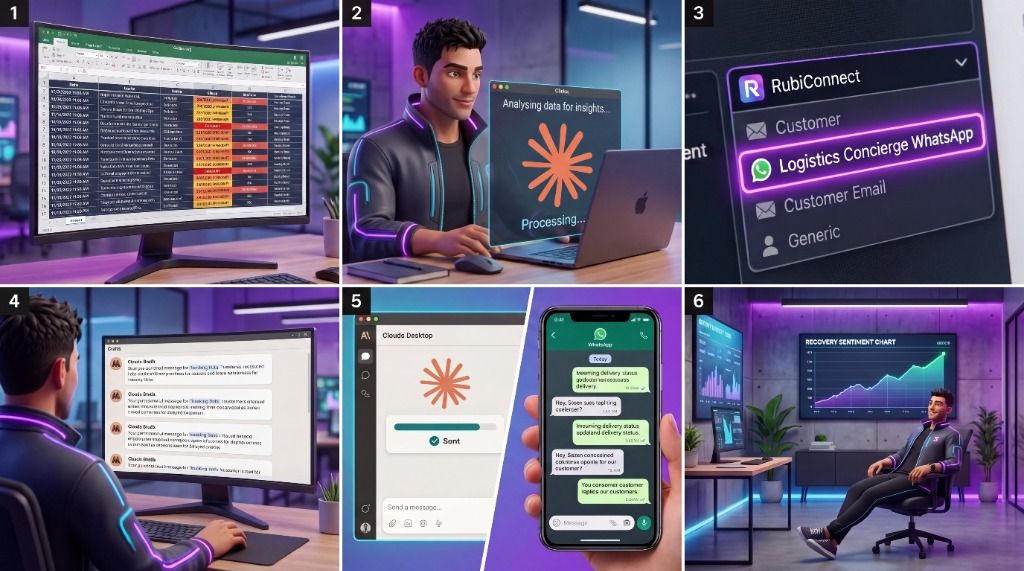
Anthropic’s Claude Desktop has quickly established itself as one of the most capable reasoning assistants available. Every day, business executives, customer support leads, operations managers, and developers use Claude to parse complex spreadsheets, write marketing copy, evaluate risk logs, and summarize customer feedback.
However, until recently, Claude Desktop lived in an operational vacuum. While it could craft the perfect customer apology or synthesize a list of 50 VIP clients due for an upgrade, turning that reasoning into real-world action required tedious manual work: copy-pasting numbers into portal dashboards, manually uploading CSVs, or switching between Meta Business Suite and SMS portals.
The Model Context Protocol (MCP) changes everything.
By connecting Claude Desktop to the RubiConnect Platform, Claude transforms from a passive conversational advisor into an active, multi-channel communications command center. Without leaving the Claude interface, your AI assistant can discover verified sender profiles, check live inboxes, generate Meta-approved templates, and dispatch branded WhatsApp and RCS messages directly to customers' mobile phones.
Executive Summary & Key Takeaways
- From Analysis to Action: Connecting Claude Desktop to the RubiConnect Platform enables Claude to execute real-world messaging tasks across WhatsApp, RCS, and SMS without switching applications.
- Native Tool Discovery: Claude automatically negotiates capabilities with RubiConnect — including
send_message,get_inbox_messages,create_template,create_campaign, andlist_agents. - Zero-Friction Setup: Configured in under two minutes by adding a lightweight JSON entry to
claude_desktop_config.json. - Enterprise Control & Safety: Claude adheres to human-in-the-loop approvals before executing outbound tool calls, while RubiConnect enforces account-level tenant isolation, rate limits, and verified brand identities.
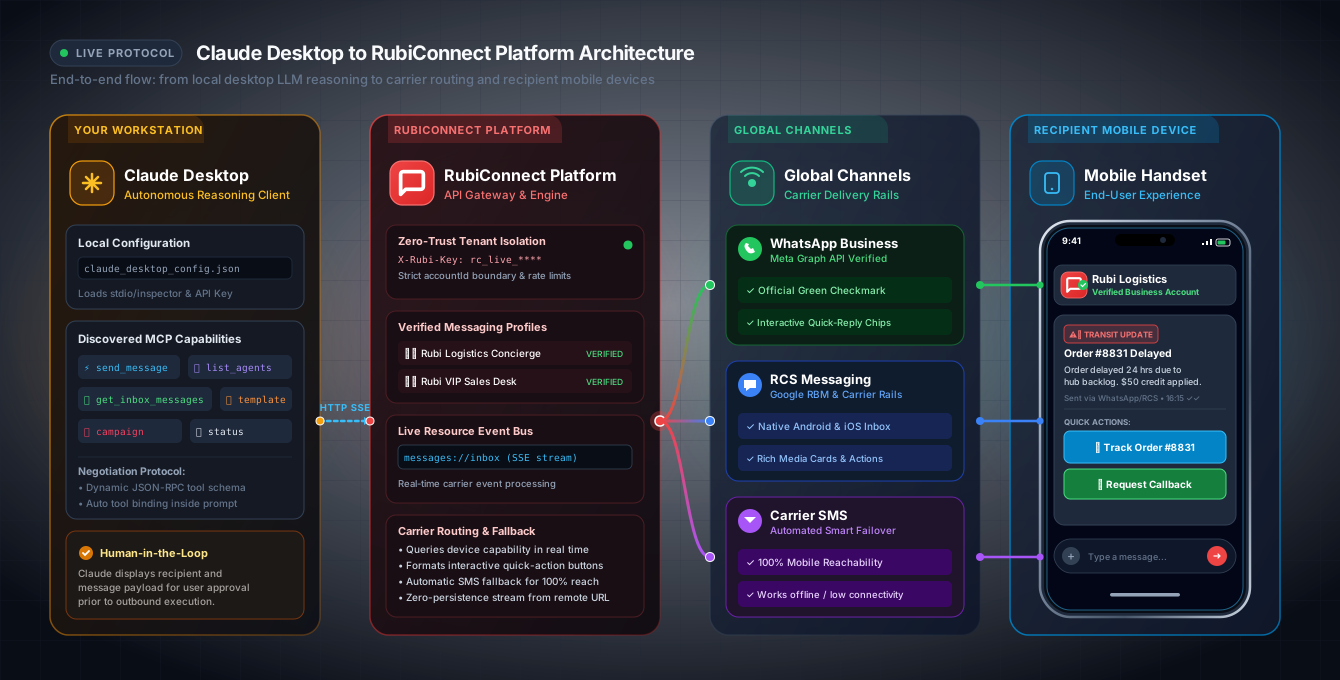
Architecture: How Claude Desktop Communicates with RubiConnect Platform
The Model Context Protocol (MCP) is an open universal standard that acts like a "USB-C port for AI." It allows desktop LLM clients to securely call backend tools and query live data streams over standard Server-Sent Events (SSE) and JSON-RPC.
Step-by-Step Setup: Connecting Claude Desktop in 2 Minutes
Connecting Claude Desktop to your RubiConnect workspace requires only your API Key and a quick update to your Claude configuration file.
- Obtain Your RubiConnect API Key: Log in to your RubiConnect Console, navigate to Settings > API Keys, and copy your live key (
rc_live_...). - Open `claude_desktop_config.json`: Locate your configuration file on macOS (
~/Library/Application Support/Claude/claude_desktop_config.json) or Windows (%APPDATA%\Claude\claude_desktop_config.json).
{
  "mcpServers": {
    "rubiconnect": {
      "command": "npx",
      "args": [
        "-y",
        "@modelcontextprotocol/inspector",
        "https://console.rubiconnect.com/api/mcp"
      ],
      "env": {
        "X_API_KEY": "rc_live_your_actual_api_key_here"
      }
    }
  }
}{
"mcpServers": {
"rubiconnect": {
"command": "npx",
"args": [
"-y",
"@modelcontextprotocol/inspector",
"https://console.rubiconnect.com/api/mcp"
],
"env": {
"X_API_KEY": "rc_live_your_actual_api_key_here"
}
}
}
}- Restart Claude Desktop: Restart the application. The hammer icon in the prompt bar will light up with active RubiConnect tools.
Featured Use Case: VIP Incident Management & Proactive Customer Outreach
Let’s explore a practical, real-world workflow: an Operations Lead managing a logistics delay for high-value enterprise accounts.
The Scenario
A supply chain glitch has delayed five high-priority equipment deliveries. The operations manager needs to:
- Identify affected customers and order numbers from an incident log.
- Select the official Logistics Concierge WhatsApp profile.
- Draft and dispatch personalized WhatsApp messages offering real-time tracking and an instant compensation credit.
- Monitor customer replies and summarize their sentiment — all directly within Claude Desktop.
Step 1: Ingesting Data & Discovering Identities
The user drops an incident summary into Claude Desktop asking to inspect connected messaging profiles. Claude automatically invokes list_agents and identifies the verified Rubi Logistics Support profile (agent_logistics_02), which carries official green checkmark verification on WhatsApp.
Step 2: Composing and Dispatching Rich Interactive Messages
The operator instructs Claude to format personalized delay notices. Claude calls send_message for each recipient, formatting interactive quick-action buttons: [ 📦 Track Order ] and [ 📞 Request Callback ]. With automatic SMS fallback enabled, 100% reachability is guaranteed even if a recipient has no data connection.
Step 3: Monitoring Inbound Responses in Real Time
Later in the day, the operator asks Claude to inspect the logistics inbox. Claude invokes get_inbox_messages, categorizes customer replies, and alerts the operator to high-priority requests — such as customers who clicked the callback button — while noting that other recipients confirmed receipt of their tracking link.
Step 4: Automated Meta Template Provisioning
To streamline future transit incidents, Claude drafts a standardized utility template (order_delay_notification) and submits it directly to Meta Graph API via create_template for immediate review and approval.
Tool Reference Matrix for Claude Desktop
- `list_agents`: Identifies available sender profiles and verified channel capabilities across WhatsApp, RCS, and SMS.
- `send_message`: Delivers single messages or streams URL-based broadcasts with interactive action buttons and automated fallback.
- `get_inbox_messages`: Retrieves conversational history to summarize customer responses and evaluate real-time sentiment.
- `create_template`: Provisions Meta-compliant WhatsApp templates with dynamic variables directly into the official approval pipeline.
- `create_campaign`: Dispatches targeted messaging campaigns to segmented customer lists.
- `get_campaign_status`: Queries real-time delivery rates, read receipts, and engagement analytics.
- `get_server_status`: Verifies protocol health, versioning, and carrier channel connectivity.
Enterprise Governance, Compliance & Security
- Verified Sender Authority: All outreach originates from verified WhatsApp green checkmark accounts and branded RCS profiles, ensuring maximum deliverability and anti-phishing protection.
- Human-in-the-Loop Controls: Claude requires explicit operator confirmation before executing sensitive outbound messages.
- Multi-Tenant Isolation: All calls are strictly scoped to the authenticated
accountIdwith Token Bucket rate limits preventing runaway execution. - Zero-Persistence Privacy: For sensitive customer records, batch broadcasts can stream directly from remote signed URLs with zero local database persistence.
Frequently Asked Questions (FAQ)
Can Claude Desktop send messages without my approval?
By default, Claude Desktop requires explicit user confirmation before executing any tool that performs external writes or triggers network actions. You can inspect the exact payload, phone number, and message content before authorizing execution.
Does this require coding or API development?
No. Once you paste the configuration snippet into claude_desktop_config.json with your API key, Claude Desktop automatically queries the MCP schema and configures the tools natively.
Can Claude Desktop listen for incoming messages in real time?
Yes. Claude can query get_inbox_messages on demand or subscribe to the messages://inbox resource stream over Server-Sent Events (SSE) to analyze incoming conversations and alert you to urgent customer inquiries.
Which messaging channels are supported?
RubiConnect supports WhatsApp Business API, RCS Business Messaging (RBM), and Carrier SMS with automated smart fallback routing.
Conclusion & Next Steps
Connecting Claude Desktop to the RubiConnect Platform bridges the gap between desktop AI reasoning and real-world multi-channel communication. Enterprise teams save hours of manual coordination and unlock instant, high-touch customer outreach across WhatsApp, RCS, and SMS.
- 🚀 [Generate Your API Key] in the RubiConnect Console.
- 📖 [Read the Full MCP Developer Guide] (https://rubiconnect.com/en/guides/mcp-integration-guide) for advanced parameters and full details of tools supprted
Related Articles
Continue exploring more insights and guides

The Business Messaging Landscape in the UK: The Renaissance of the Native Inbox
The United Kingdom has established itself as one of the most mature, high-value, and compliance-driven digital economies in the world. As UK enterprises look to maximize customer lifetime value amid shifting economic conditions, the business messaging ecosystem is undergoing a dramatic paradigm shift. While in other countries the landscape is defined by near-total reliance on a single third-party application, the UK market is characterised by a fierce battle between over-the-top (OTT) ecosystems and the carrier-backed native inbox revival.

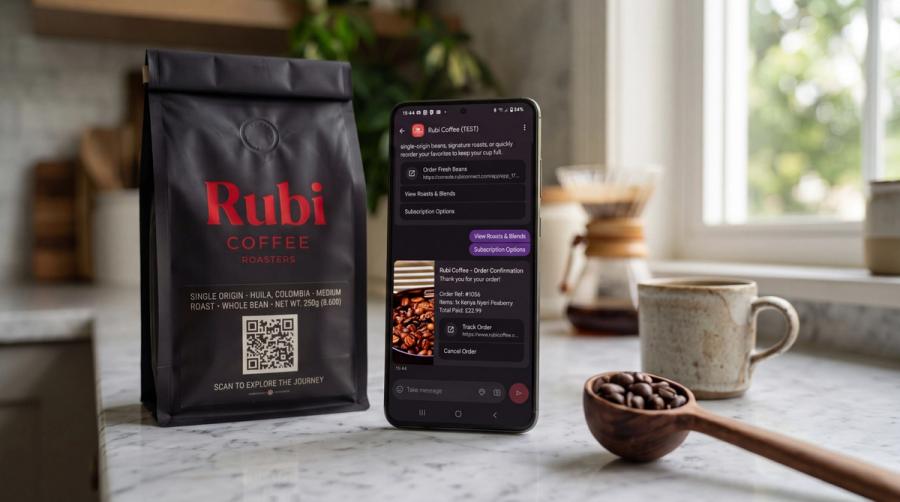
Conversational Commerce Without the Friction: The Rubi Coffee Playbook
How specialty roaster Rubi Coffee connected Shopify to WhatsApp and RCS with RubiApps to create a seamless, 24-second in-chat buying experience.
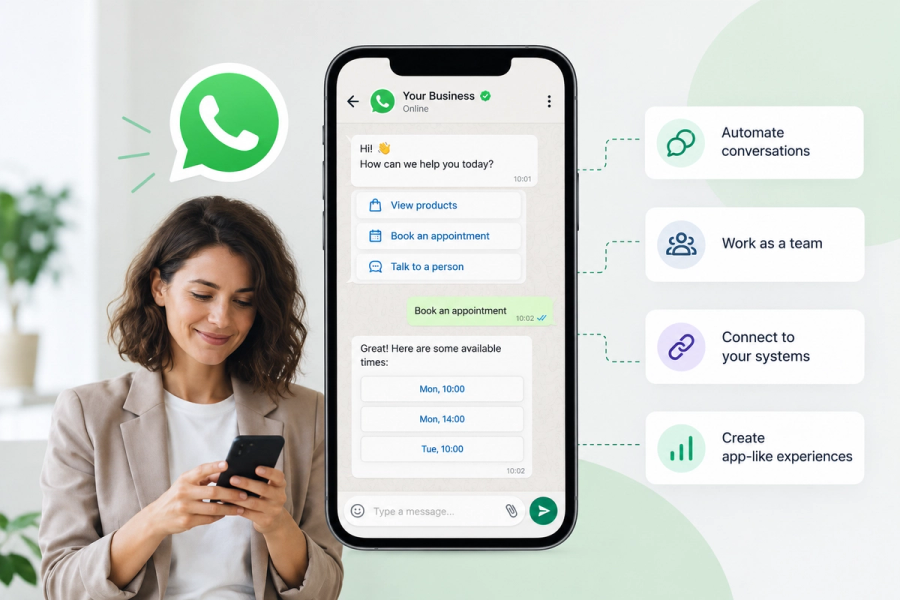
How to Get Started with WhatsApp Business in the UK: A Guide for SMEs
WhatsApp Business is easy to start with. But when your business wants to automate conversations, connect WhatsApp to its systems or create app-like customer experiences, the WhatsApp Business API opens up a whole new set of possibilities. This guide explains how to get started and what to look for in a WhatsApp Business provider in the UK.